
Every hosted event can have a one-page flyer. Everything printed on it comes from the Event plan tab. To change the words, select Edit plan, save, then come back.
Step 1: Open the flyer builder
Select Save & open flyer builder on the event form, Flyer builder or Edit flyer on the event dashboard, or Flyer builder on the event's card.
Step 2: Pick a template
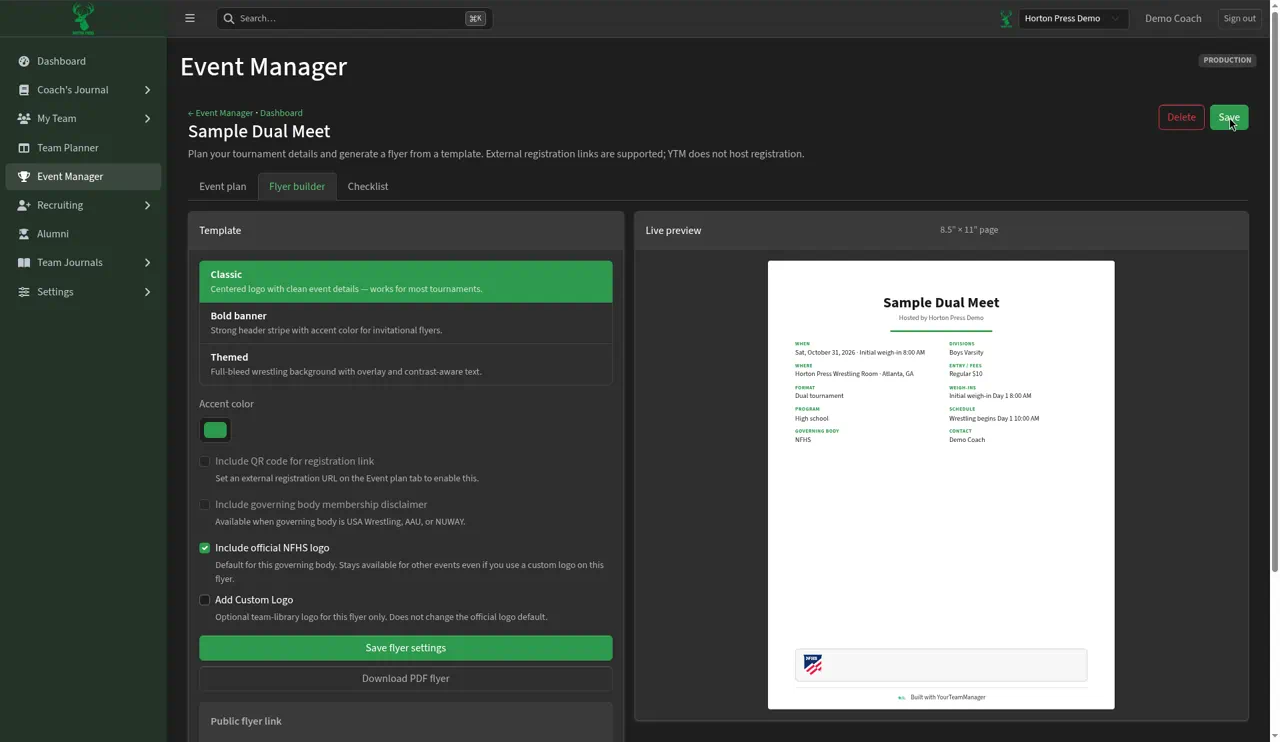
- Classic: centered logo, clean details. Works for most events.
- Bold banner: a strong colored stripe across the top.
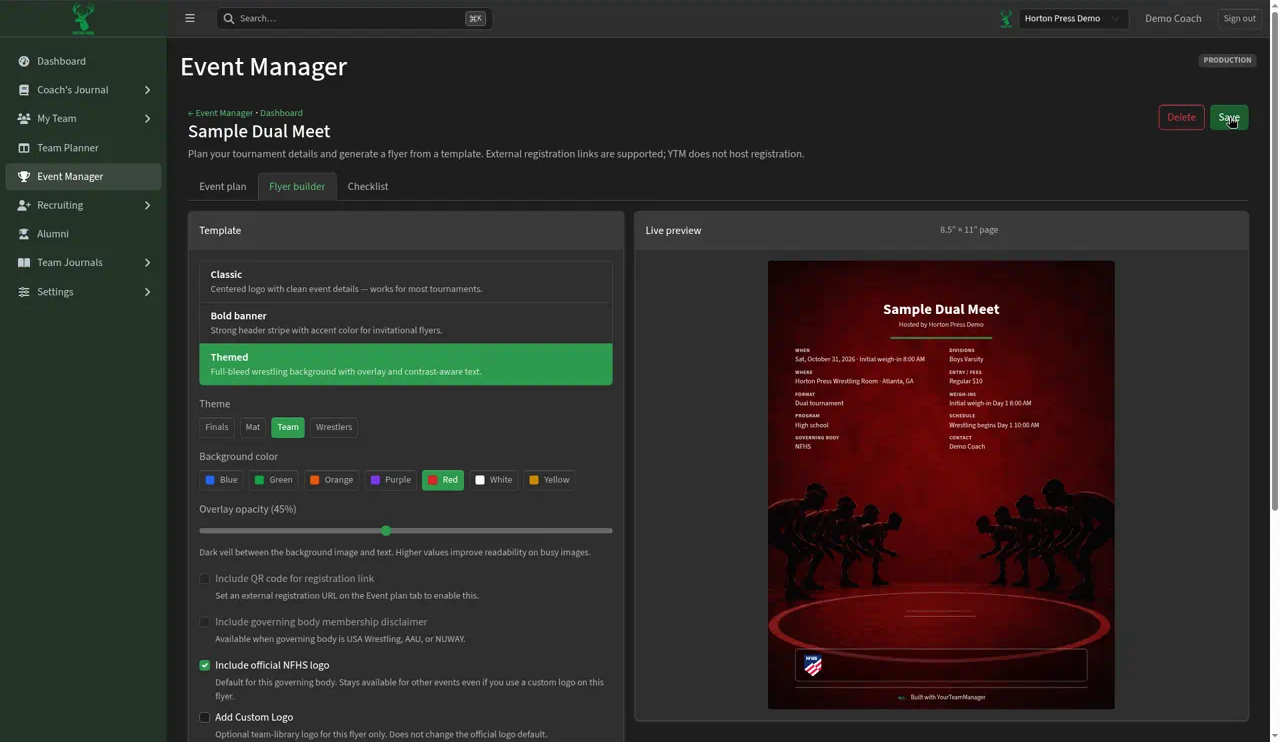
- Themed: a wrestling picture fills the page, with the words set to stay readable.
Step 3: Choose colors
- Classic and Bold banner: pick an Accent color.
- Themed: pick a Theme (Finals, Mat, Team or Wrestlers), a Background color, and slide Overlay opacity higher if the words are hard to read.
Step 4: Extras and logos
- Include QR code for registration link: needs an External registration URL on the Event plan.
- Include governing body membership disclaimer: for USA Wrestling, AAU or NUWAY events.
- Include official NFHS logo: the name matches your governing body.
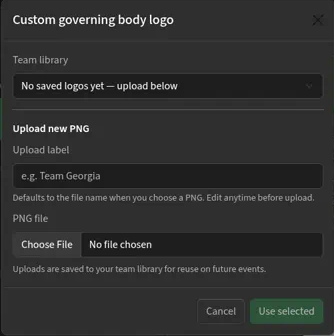
- Add Custom Logo: use a different logo on this flyer only. Pick one from Team library, or upload a PNG under Upload new PNG, then select Use selected.
Step 5: Save
Check the Live preview, then select Save flyer settings. The button changes to Saved.