
Every page has the same top bar and side menu.
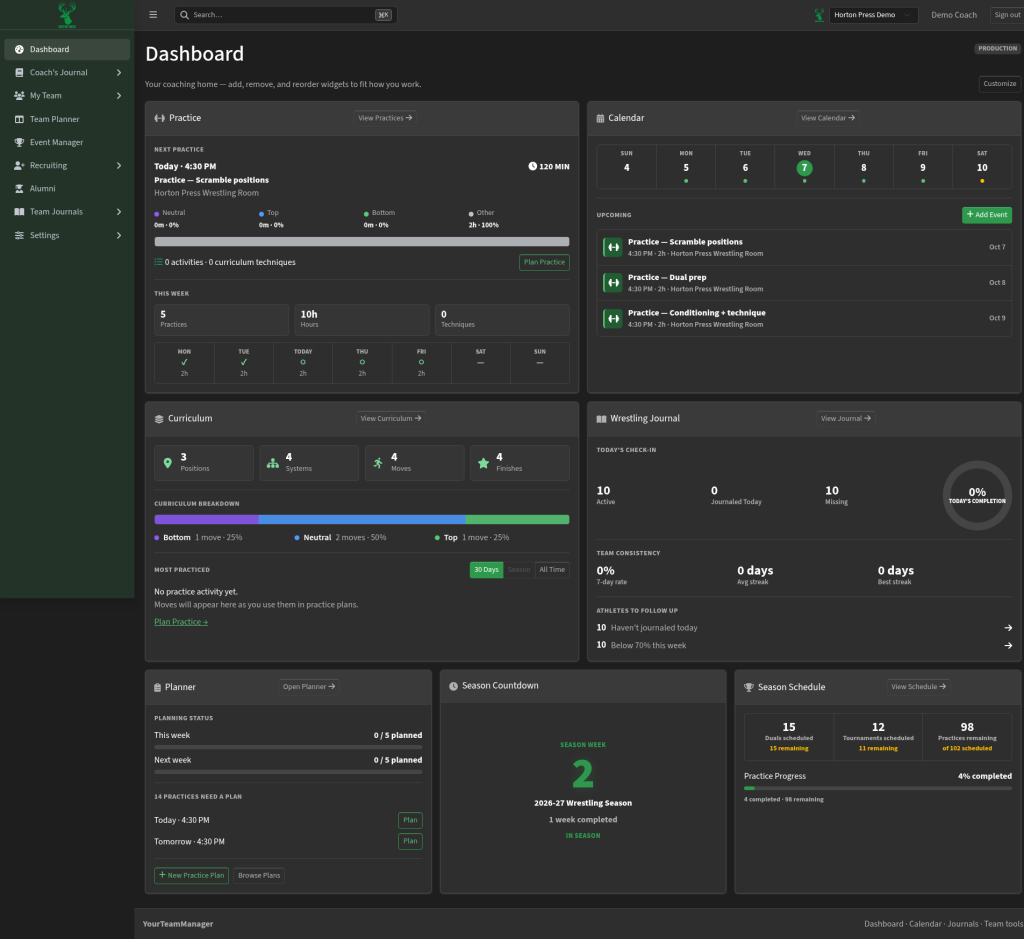
The top bar
- Search: find athletes, pages and other items by name.
- Team switcher: if you coach more than one team, pick the team you want to work on. Always check it before you change anything.
- Sign out: sign out when you're done, especially on a shared computer.
The side menu
- Dashboard: your home screen.
- Coach's Journal: Calendar, Curriculum, Practice Planner and Team Notes.
- My Team: Roster, OWC (the weight calculator), Check-in, Evaluations, Reporting and Staff.
- Team Planner: task boards for your staff.
- Event Manager: tournaments and duals you host.
- Team Journals: Dashboard, Participants, Shared and Export (Premium and Super).
- Recruiting: Dashboard, Recruits, Pipeline, Assigned, Recruiting Form and Communications (Super).
- Alumni: former athletes (Super, Coming soon).
- Settings: team options, such as General, Season Settings and My Teams.
Select a heading with an arrow, such as My Team, to open its list.
Switch teams
- Open the team switcher in the top bar.
- Pick the team you want.
To see all your teams, or to create or join another one, see Create or join another team.