
Use these steps when plans will not load or a purchase does not unlock the app.
Plans will not load
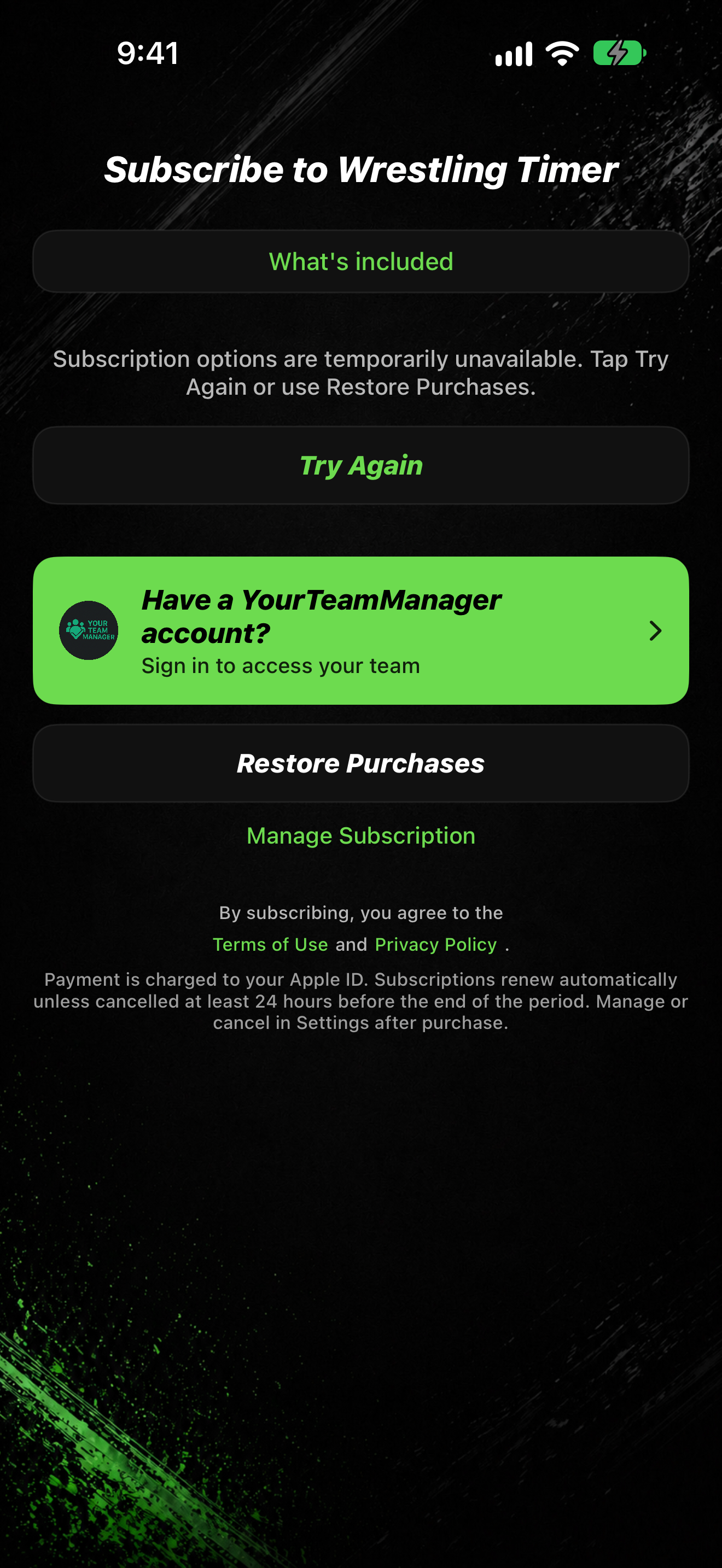
- If products are missing, the paywall says: Subscription options are temporarily unavailable. Tap Try Again or use Restore Purchases.
- Tap Try Again.
- Check your network, then open the app again.
- Confirm you are signed into the App Store with the Apple ID that should own the purchase.
You already paid
- On the paywall or in SETTINGS → Subscription, tap Restore Purchases.
- Finish any Apple ID prompts.
- On Watch, restore or subscribe on iPhone first if the Watch still asks you to subscribe.
Clear cached data
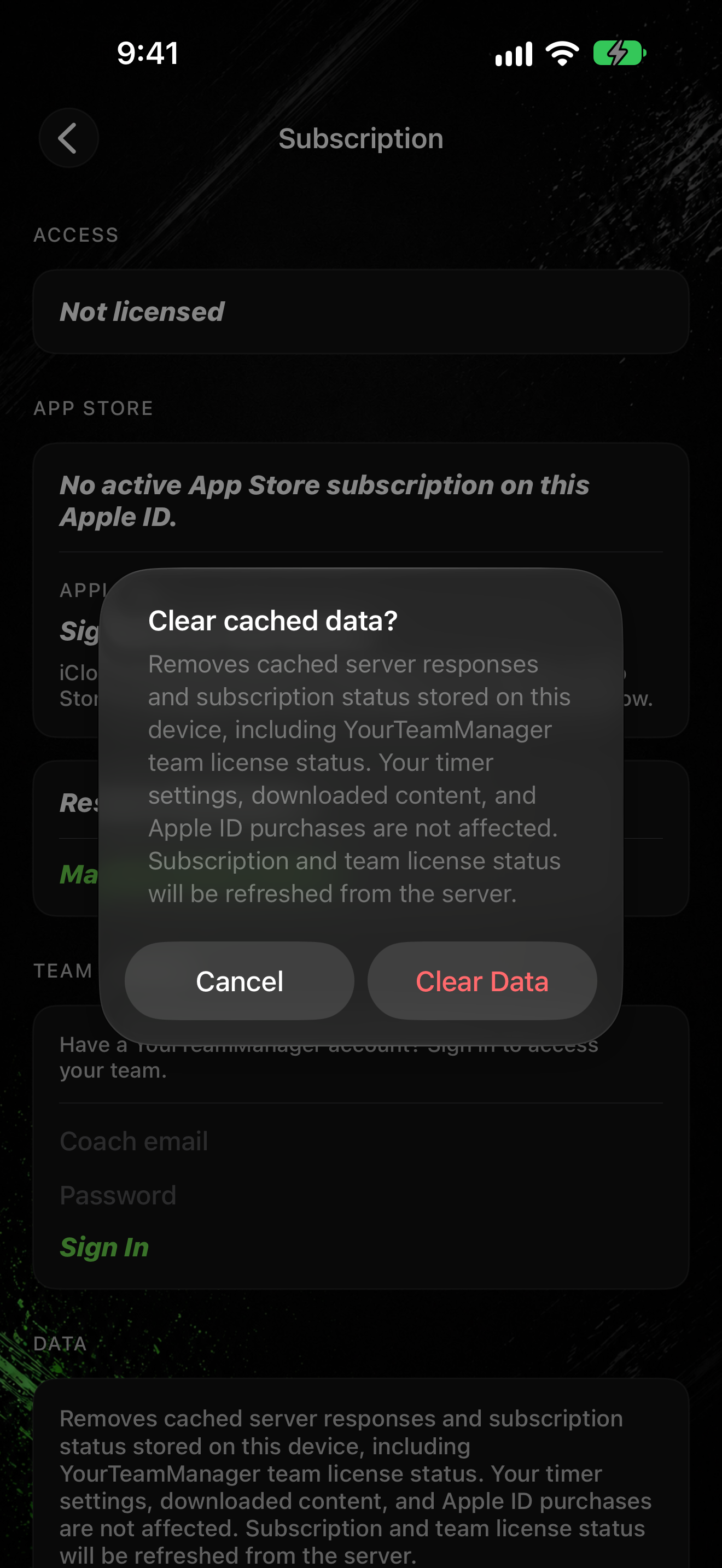
- Tap SETTINGS → Subscription.
- Under Data, tap Clear Cached Data.
- Confirm with Clear Data, or tap Cancel.
- Tap Restore Purchases again.
Team license
If your organization gave you access, use Have a YourTeamManager account? on the paywall or under Team License in Subscription. Broader YourTeamManager features in Settings are Coming soon.
Still stuck
- Restart the device and open Wrestling Timer again.
- On TestFlight builds, sandbox Apple IDs and delayed StoreKit updates can make plans look empty until you tap Try Again or Restore Purchases.
- Contact support from Settings if restore still fails after these steps.