
In the side menu, open My Team, then select Roster.
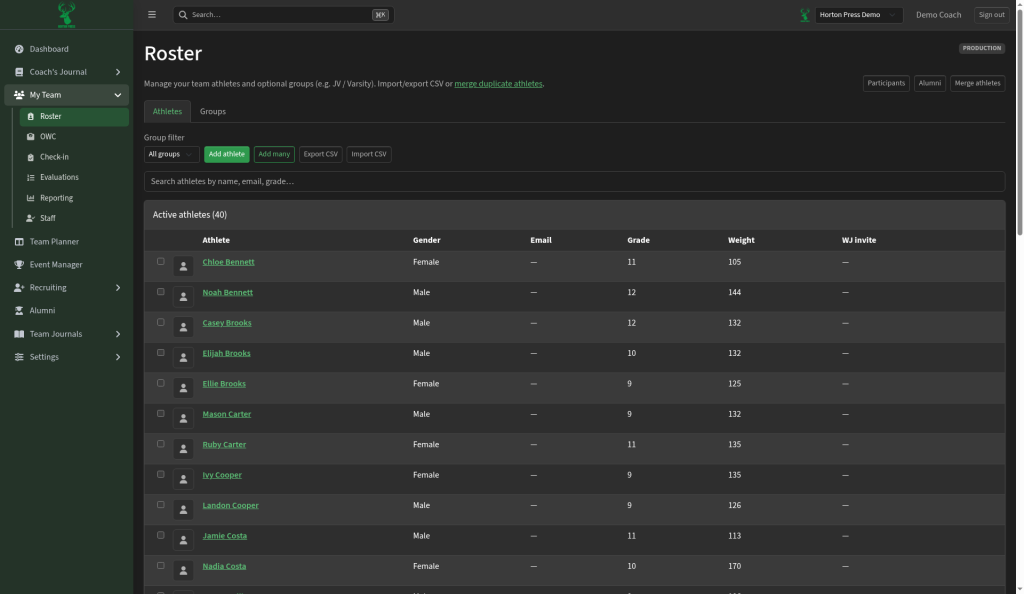
The athlete list
The Active athletes table shows each athlete's name, Gender, Email, Grade, Weight and WJ invite (whether a Wrestling Journal invite was sent). Select a name to open the athlete's profile. See An athlete's profile page.
Find athletes
- Type in the search box to search by name, email or grade.
- Use Group filter to show one group. On teams with more than one roster, Roster filter is there too.
Use groups
Groups split one roster, for example into Varsity and JV.
- Select the Groups tab.
- Type a name under New group, such as "Varsity", and select Add.
- Use Rename, Delete or the arrows to change a group.
- To put athletes in a group, check them in the Athletes list, pick the group in Bulk add to group, then select Assign selected.
Most teams use one roster with groups. If you need separate rosters, select add another roster on the Groups tab. A Rosters tab then appears.
Buttons at the top
- Participants opens Team Journals participants.
- Alumni opens your former athletes (Super, Coming soon).
- Merge athletes fixes duplicates. See Merge duplicate athletes.