Team Journals
Team Journals shows how your athletes are doing with their Wrestling Journal. You can see who journaled today, read the journals athletes share with you, leave feedback, and export a record of who journaled.
Comments and tags you add are seen only by coaches on your team. Athletes can't see them yet.
Share this with your athletes: Using the Wrestling Journal app.
Open Team Journals
- In the side menu, select Team Journals. It opens to show:
- Dashboard: your whole team at a glance
- Participants: where you manage who is in Team Journals, including the invite code, inviting by email, approving join requests, and seeing who shares. The page says “Manage journal participants — invite by code or email, approve join requests, and see sharing status.”
- Shared: only the athletes who share their journal with you
- Export: a record of who journaled
- Select Dashboard to see your whole team.
At the top right of the dashboard are three buttons:
- Roster opens your team Roster.
- Shared journals shows the athletes who have chosen to share their journal with coaches. The page says “Athletes who opted in to share journal content with coaches.” Select Back to Team Journals to return.
- Export opens the export page (see “Export completion to a spreadsheet” below).
See who journaled today
- Open Team Journals and select Dashboard.
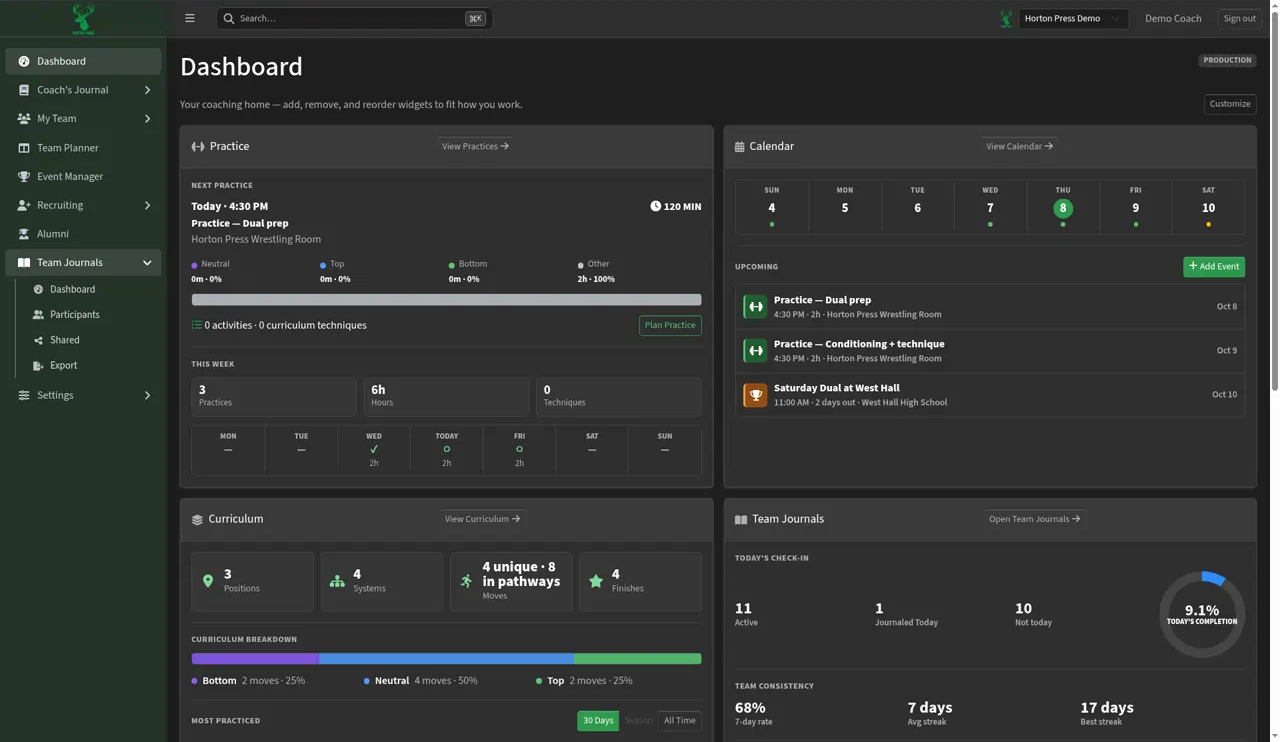
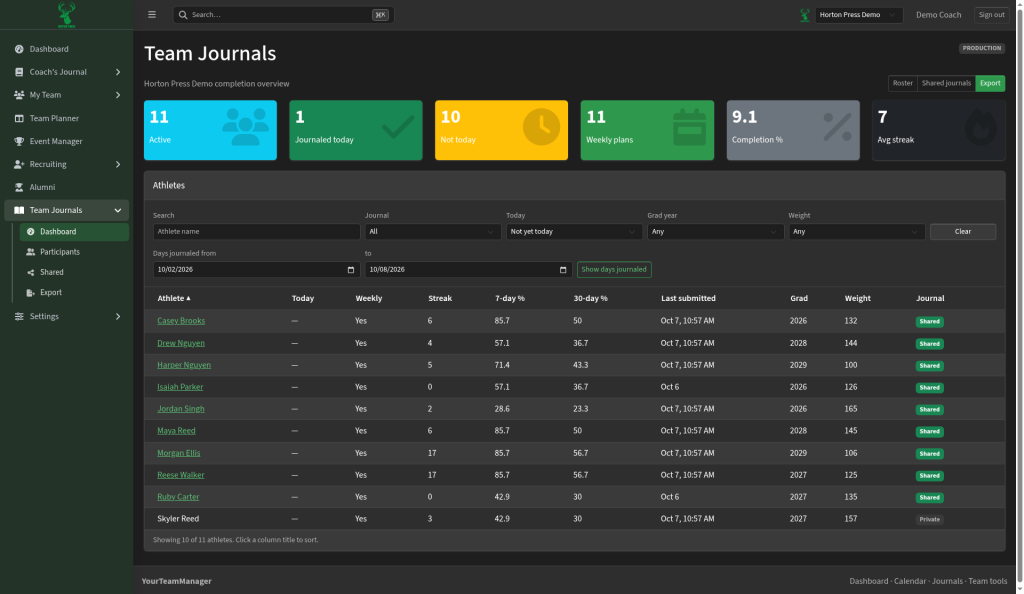
- Look at the cards along the top:
- Active: athletes in Team Journals
- Journaled today and Not today: who has and hasn't written today's entry
- Weekly plans: athletes with a plan for this week
- Completion %: the share of athletes who journaled today
- Avg streak: the average number of days in a row athletes have journaled
- In the Athletes list, the Today column shows Yes if they journaled today, or a dash (—) if they haven't yet.
- Weekly shows Yes when the athlete has written a weekly plan for this week.
Find an athlete
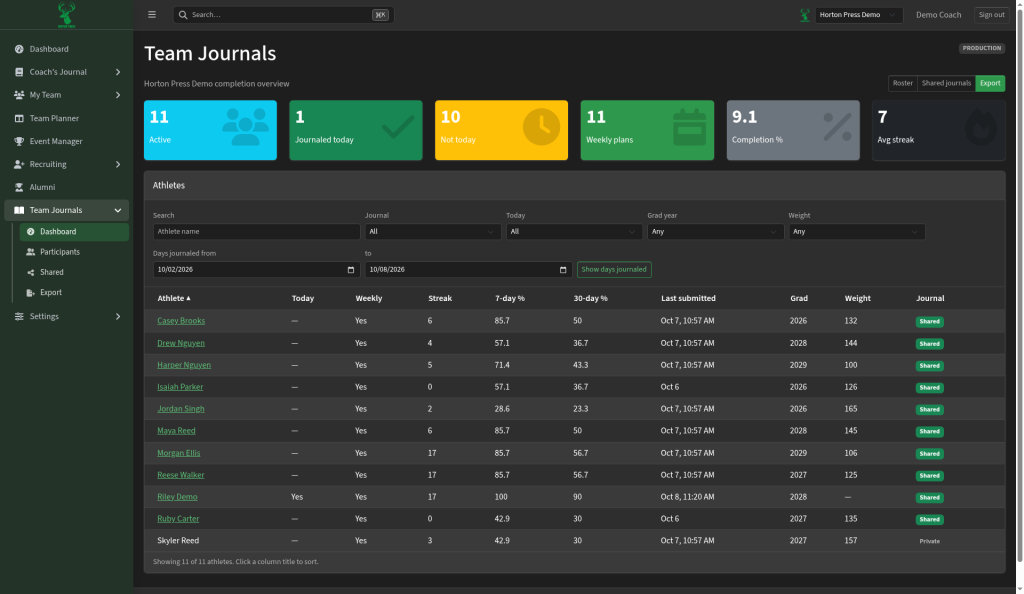
- In the Athletes list, click the Search box.
- Type an athlete's name. The list narrows as you type.
- To start over, select Clear. It only appears after you type a name or pick a filter, and it resets all the filters.
Filter the list
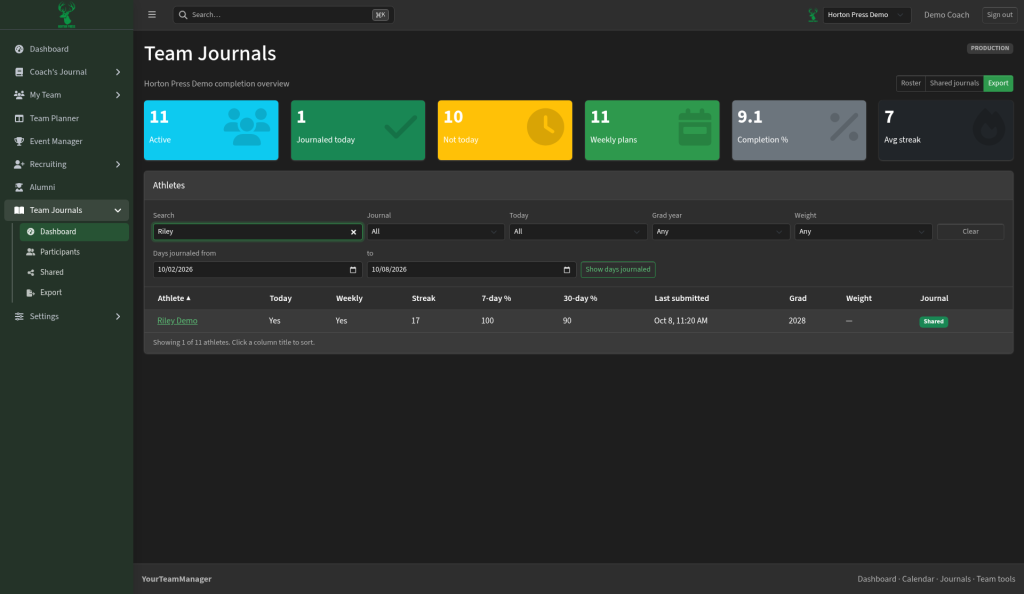
- Pick an option from any of the filters above the list:
- Journal: All, Shared, or Private
- Today: All, Journaled today, or Not yet today
- Grad year and Weight
- To look at a certain stretch of days, pick dates in Days journaled from and to, then select Show days journaled.
- A new column appears, titled with your dates (for example “Oct 1 – Oct 8”).
- Each athlete shows how many of those days they journaled (for example “6 / 8”), and the list sorts by that column, most days first.
- Select Hide next to the button to remove the column. The summary cards don't change.
- Check the bottom of the list to see how many athletes match, for example “Showing 10 of 11 athletes.”
- Select Clear to reset every filter at once, not only the search box. Clear only appears after you type a name or pick a filter.
Sort the list
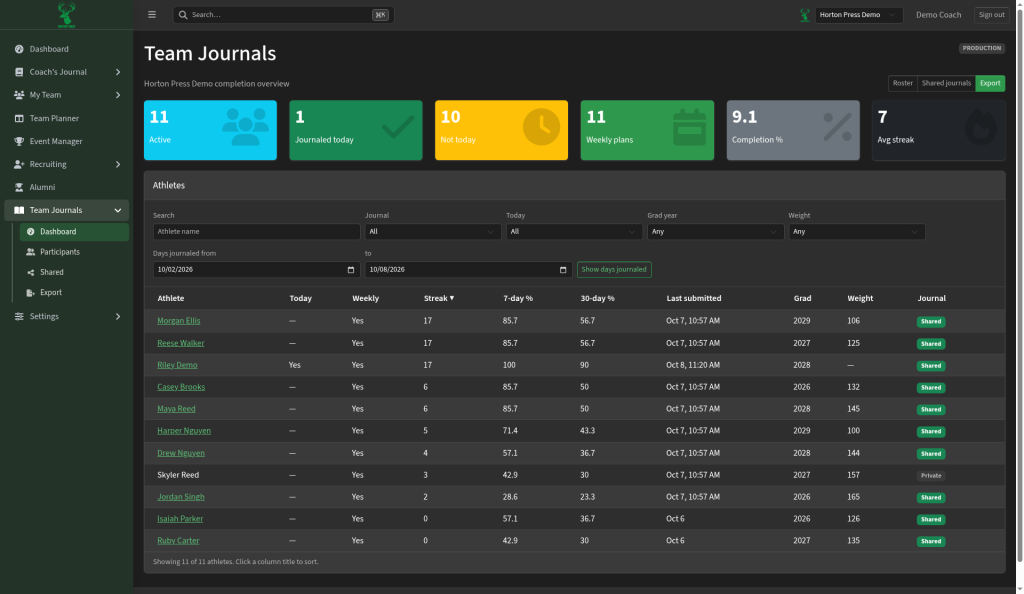
- Click a column title, such as Streak, 7-day %, or Last submitted.
- The list sorts by that column, and a small arrow appears next to the title.
Read an athlete's journal
- In the Athletes list, click the athlete's name.
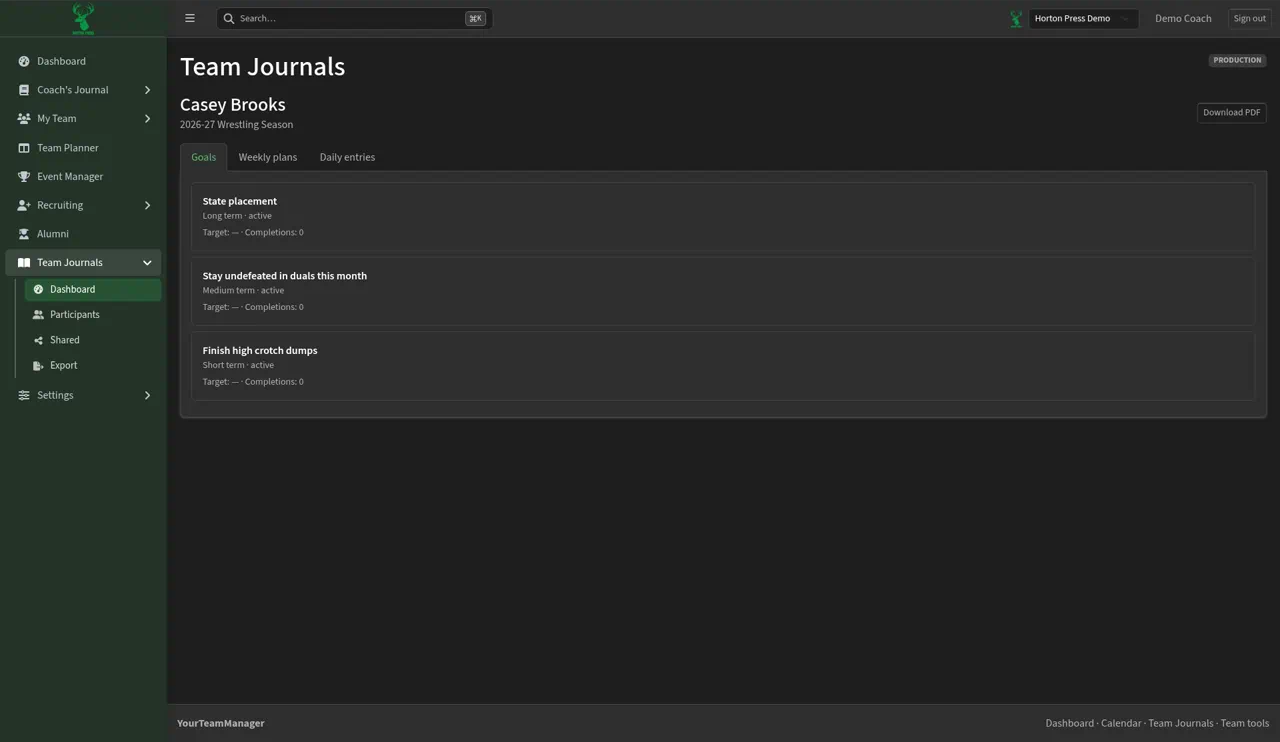
- The journal opens on the Goals tab. Select a tab to switch between the parts of the journal:
- Goals: each goal and whether it's short, medium, or long term, and active, completed, or paused
- Weekly plans: grouped by Week of …
- Daily entries: newest first, with the athlete's answers to the daily questions
If an athlete's journal is Private, their name isn't a link, so you can't open it. Their numbers still show in the list.
Open one entry and print it
- In the athlete's journal, select the Daily entries tab.
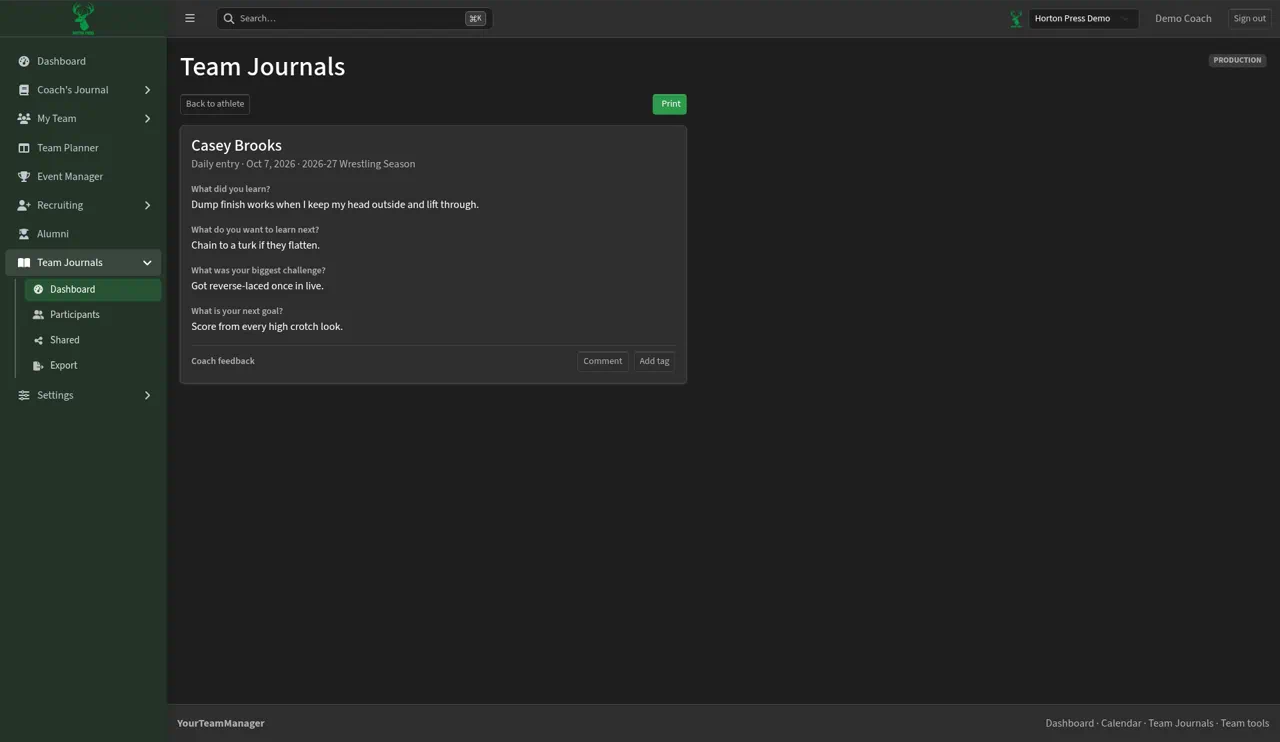
- On the entry you want, select View / print. The entry opens on its own page, marked Daily entry with the date.
- Select Print to print just that entry.
- Select Back to athlete when you're done.
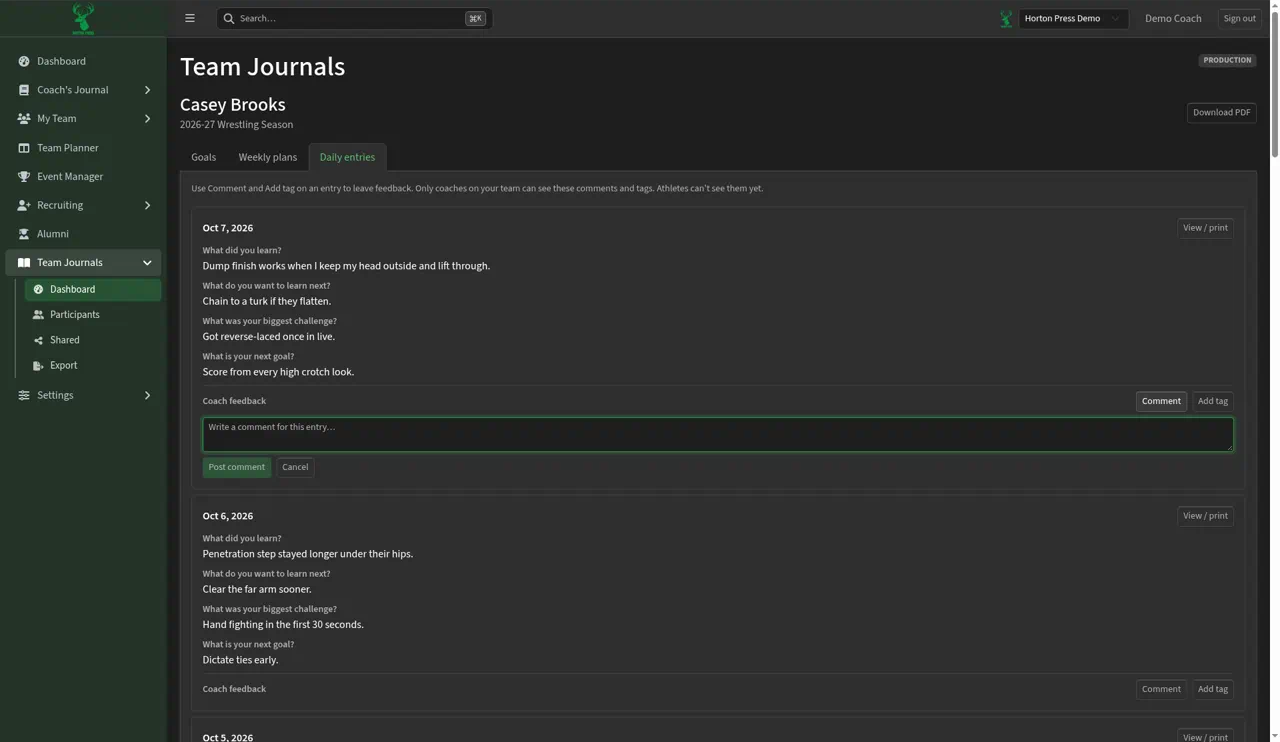
Leave a comment on an entry
- Open the athlete's journal and select the Daily entries tab (or open the entry with View / print — it has its own Comment and Add tag buttons).
- Under the entry, find Coach feedback and select Comment.
- Type your note in the box that says “Write a comment for this entry…”.
- Select Post comment. To back out, select Cancel.
Your comment shows your name and the time you posted it.
Reply to or delete a comment
To reply:
- Open the athlete's journal and select the Daily entries tab (or open the entry with View / print — it has its own Comment and Add tag buttons).
- Under the comment, select Reply.
- Type in the box that says “Write a reply…”.
- Select Post reply. To back out, select Cancel.
Your reply shows indented under the comment, with your name and the time.
To delete:
- Open the athlete's journal and select the Daily entries tab (or open the entry with View / print — it has its own Comment and Add tag buttons).
- Under the comment, select Delete.
- You'll see “Delete this comment? Replies to it are deleted too.” Select OK to delete it.
You can't edit a comment. To change one, delete it and post a new one.
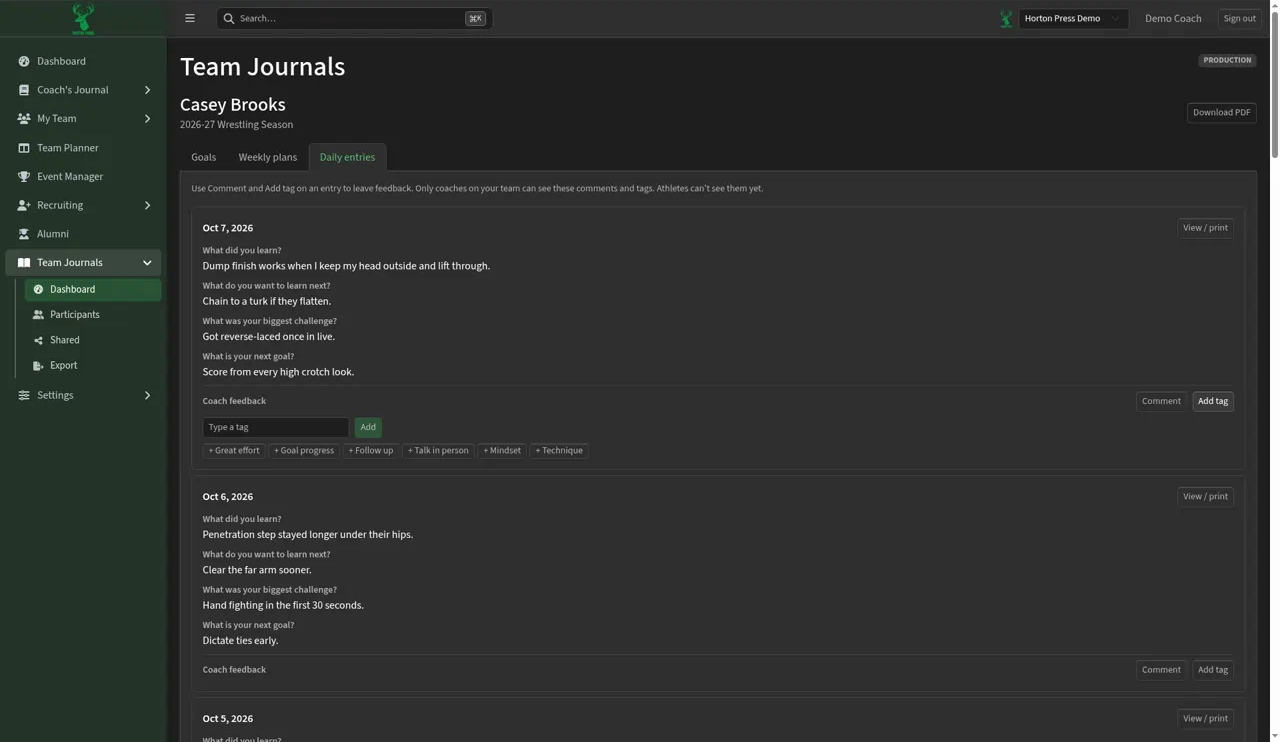
Add a tag to an entry
Tags are quick labels that help you remember what to do about an entry.
- Open the athlete's journal and select the Daily entries tab (or open the entry with View / print — it has its own Comment and Add tag buttons).
- Under the entry, find Coach feedback and select Add tag.
- Select one of the quick tags: Great effort, Goal progress, Follow up, Talk in person, Mindset, or Technique.
- Or type your own tag in the Type a tag box and select Add.
Remove a tag
- Open the athlete's journal and select the Daily entries tab (or open the entry with View / print — it has its own Comment and Add tag buttons).
- Find the tag next to Coach feedback on the entry.
- Select the small × on the tag. It disappears.
Save a PDF of a journal
- Open the athlete's journal.
- Select Download PDF at the top right.
Export completion to a spreadsheet
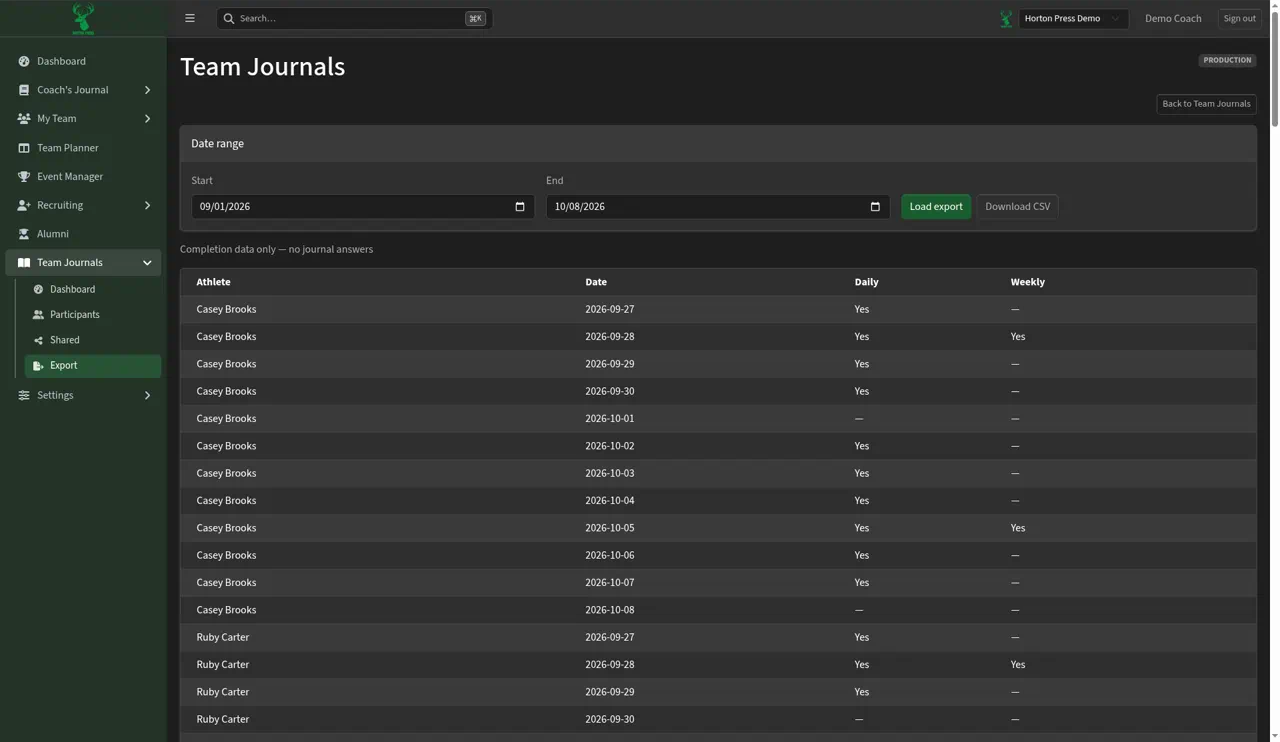
The export lists who journaled on each day. It shows completion only, not what athletes wrote.
- In the side menu, open Team Journals and select Export. You can also use the Export button at the top of the Team Journals dashboard.
- Pick a Start date and an End date.
- Select Load export. The table shows Athlete, Date, Daily, and Weekly.
- Select Download CSV to save a spreadsheet file you can open in Excel or Google Sheets.
- Select Back to Team Journals to return.
Use the Dashboard card
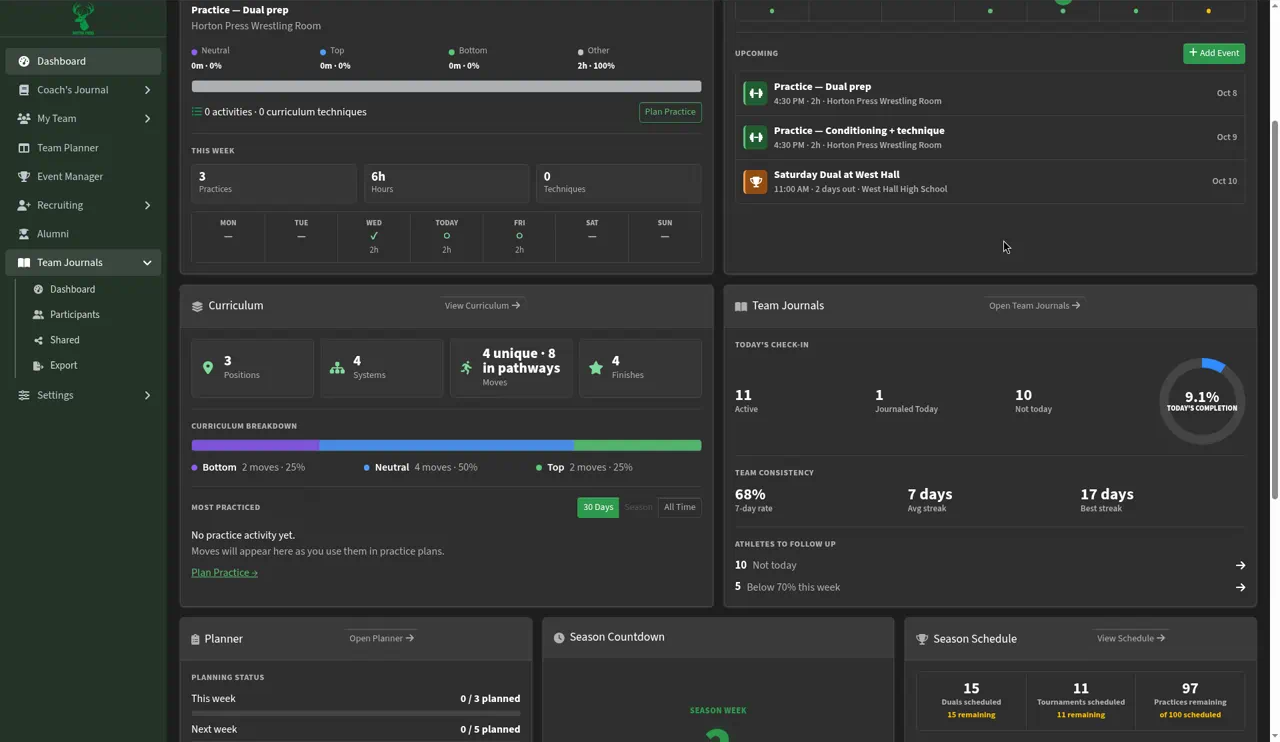
Your main Dashboard has a Team Journals card for a quick check, so you don't have to open Team Journals:
- Select Dashboard at the top of the side menu.
- Find the Team Journals card. It shows:
- Today's check-in: Active, Journaled today, Not today, and Today's completion
- Team consistency: the 7-day rate, average streak, and best streak
- Athletes to follow up: Not today (athletes who haven't journaled yet today) and Below 70% this week
- Select Open Team Journals to open the full page.