
Using the Wrestling Journal app
The Wrestling Journal app is your own place to set goals, plan your week, and write down what you learned at practice. This guide walks you through it on an iPhone, one step at a time. Parents are welcome to follow along.
Create your account
- Open the Wrestling Journal app and tap the Create Account tab.
- Step 1 of 2: fill in First name, Last name, Email, and Password (8+ characters). Turn on I confirm I am 13 or older, then tap Continue.
- Step 2 of 2: pick your State. If your coach gave you a code, type it under Team invite code and tap Check. This is optional, and you can also join a team later. Tap Create Account.
- You'll see Verify email. Open the verification link in the email the app sent you, then come back and sign in.
- Next comes Get set. Tap Continue, then pick a team (or tap Skip for now). Start your season by typing a Season name and tapping Create season.
- Add your goals. Type a Goal name, pick Short-term, Medium-term, or Long-term, and tap Save goal. You need "at least one short-term, one medium-term, and one long-term goal to continue."
- Tap Open journal.
Sign in
- Open the Wrestling Journal app.
- Make sure the Sign In tab is selected. (New here? Use the Create Account tab instead.)
- Type your email in the Email box.
- Type your password in the Password (8+ characters) box.
- Tap Sign In.
Your Home screen
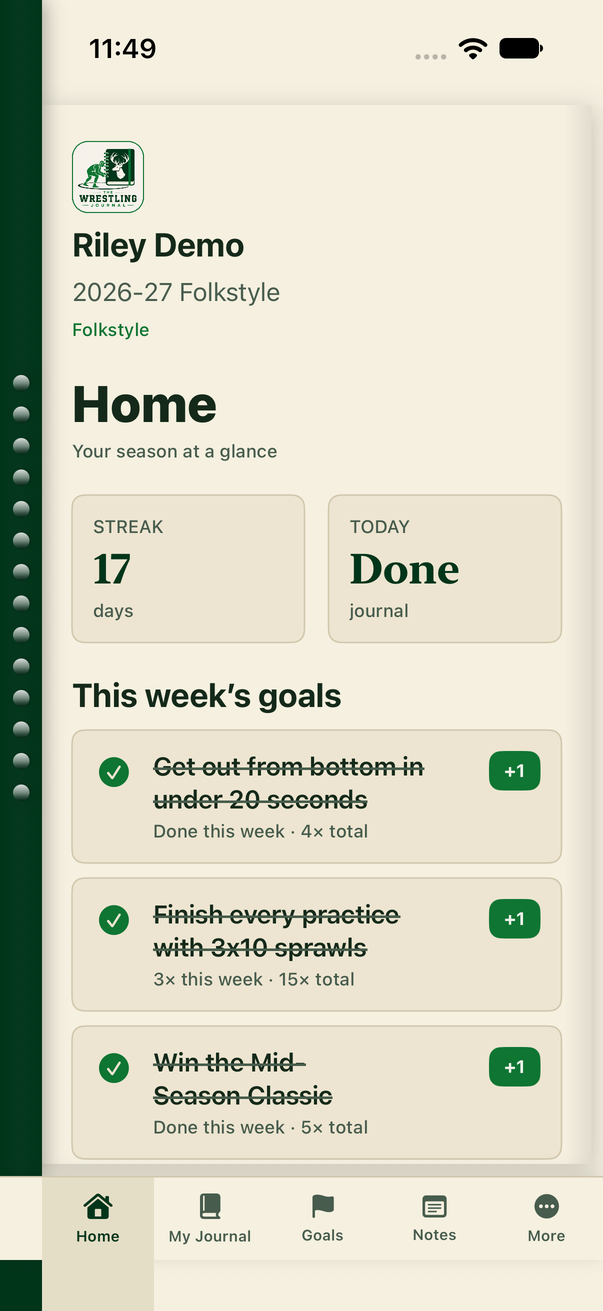
After you sign in, you land on Home ("Your season at a glance").
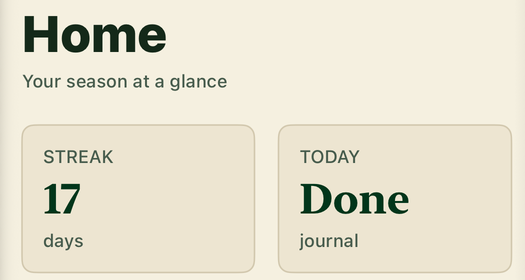
- STREAK shows how many days in a row you've journaled.
- TODAY says Done once you've submitted today's journal.
- This week's goals lists the goals in your plan for this week. Tap the circle next to a goal to mark it done for the week. It gets a checkmark and is crossed out, and it says "Done this week" along with how many times you've done it in total. Did it again? Tap +1 to count another time this week. Tapping the checkmark clears this week's count.
Use the tabs along the bottom to move around: Home, My Journal, Goals, Notes, and More.
Write today's journal
You need a plan for the week before you can write a daily entry. If you don't have one yet, the app tells you: "Every week needs a weekly plan before you can write a daily journal entry."
- Tap My Journal at the bottom.
- Check THIS WEEK'S PLAN. If it says Set this week's plan, tap it (or tap Make weekly plan if the app pops up a reminder). Choose your goals and actions, then tap Submit weekly plan. Saving the plan as a draft isn't enough. When it's done, it says Weekly plan complete.
- Tap Write today's entry.
- Answer the questions one at a time. Tap Next to move on, or Back to go back.
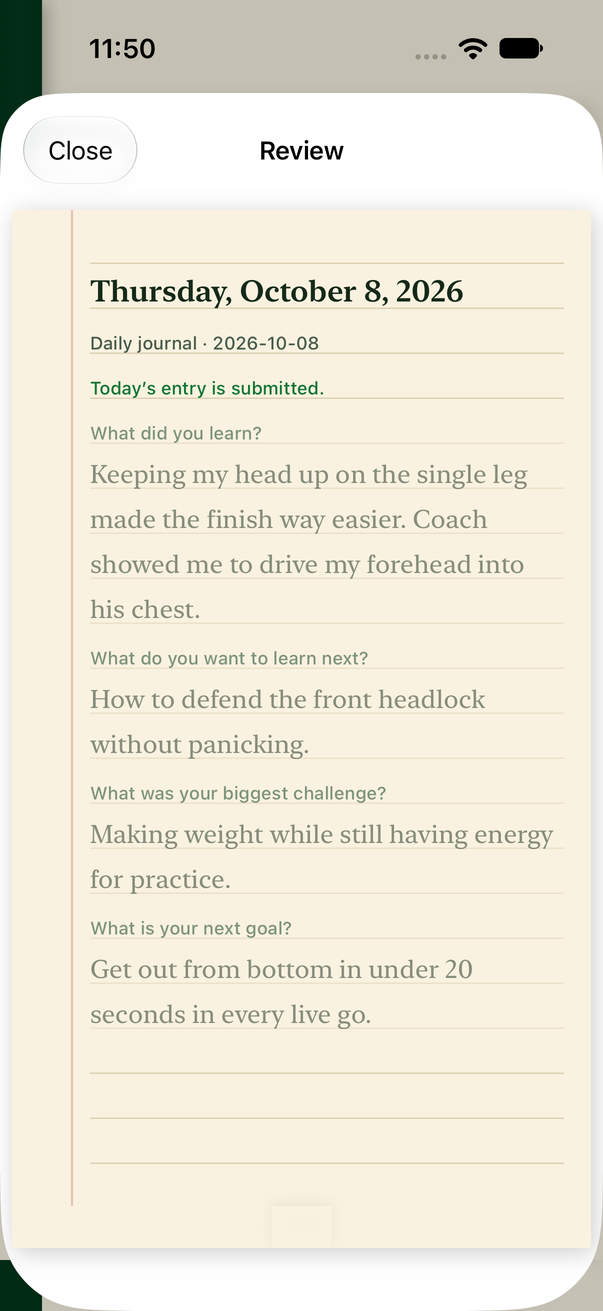
- What did you learn?
- What do you want to learn next?
- What was your biggest challenge?
- What is your next goal? Pick one of your goals, or tap Add new goal.
- On the last page you'll see "Review your answers before submitting." Tap Edit next to any answer to change it.
- Tap Submit journal.
Not ready to submit? Tap Save draft instead. Later, the button says Continue today's entry so you can pick up where you left off. Coaches never see drafts.
Once you submit, the entry shows "Today's entry is submitted." It's locked now, so you can read it but not change it. To look at it again, tap View today's entry.
See your streak
- Tap Home.
- Look at STREAK. The number is how many days in a row you've journaled. Keep it going by journaling every day.
Look back at past entries
- Tap My Journal.
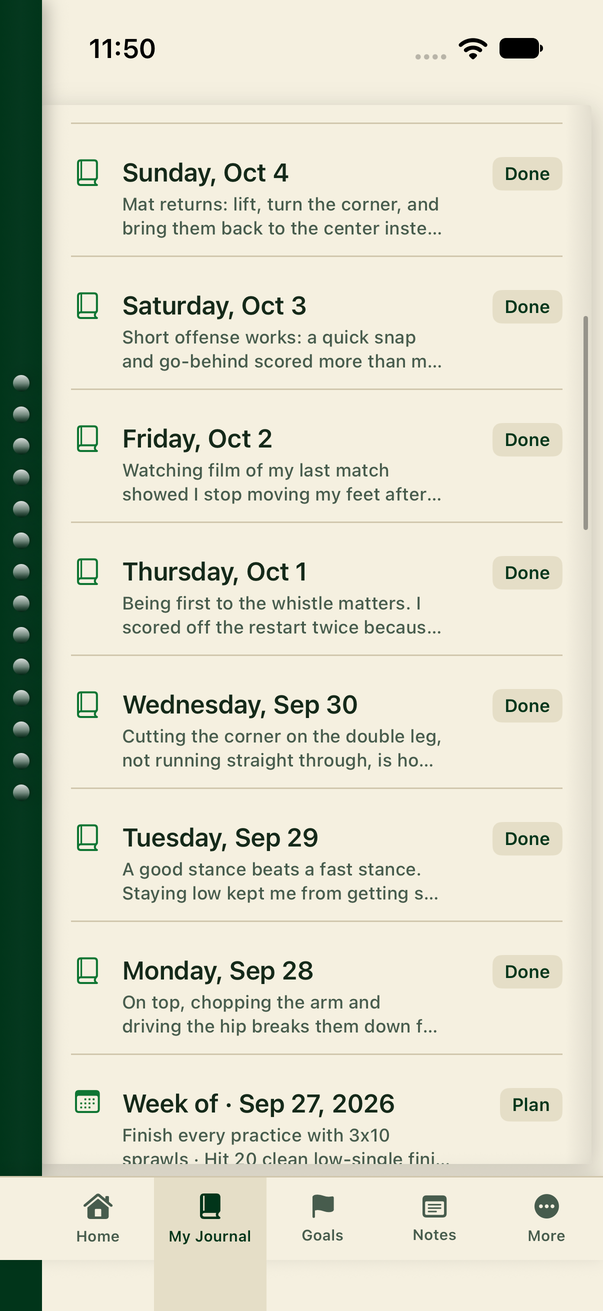
- Scroll down to PREVIOUS ENTRIES. Finished daily entries show Done, and weekly plans show Plan. Anything you saved but didn't submit shows Draft.
- Tap an entry to open it.
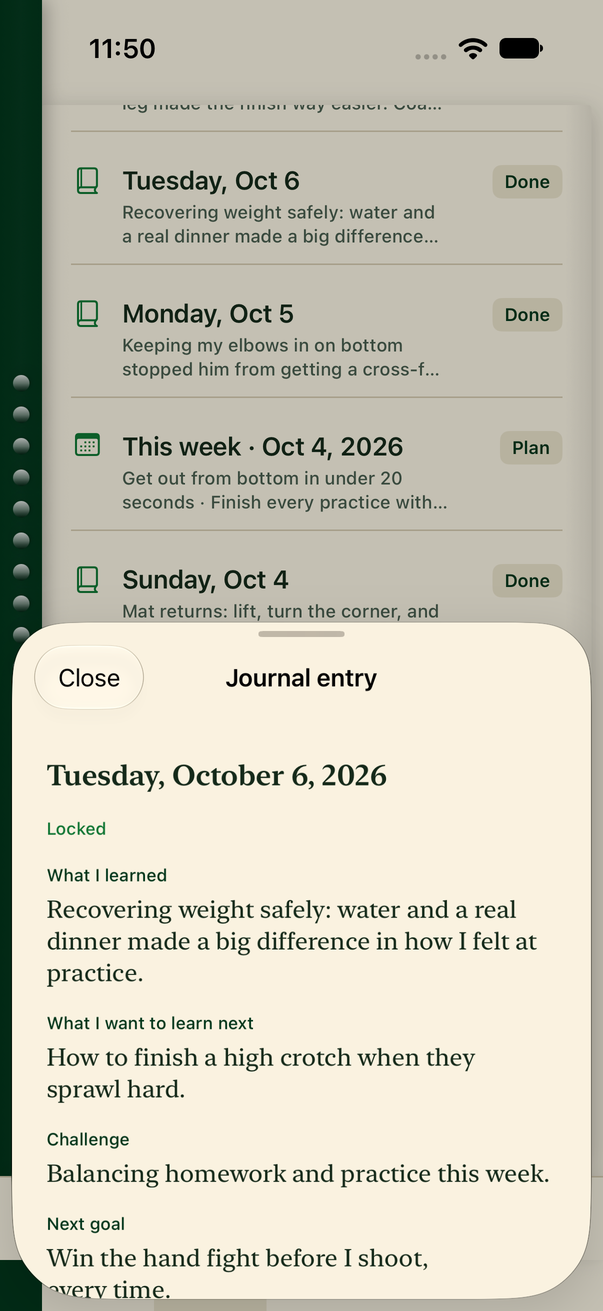
- Read your answers. The top of the entry shows its status: Draft (saved but not submitted yet), Submitted (sent in), or Locked (can't be changed anymore).
- Tap Close when you're done.
Goals and weekly plans
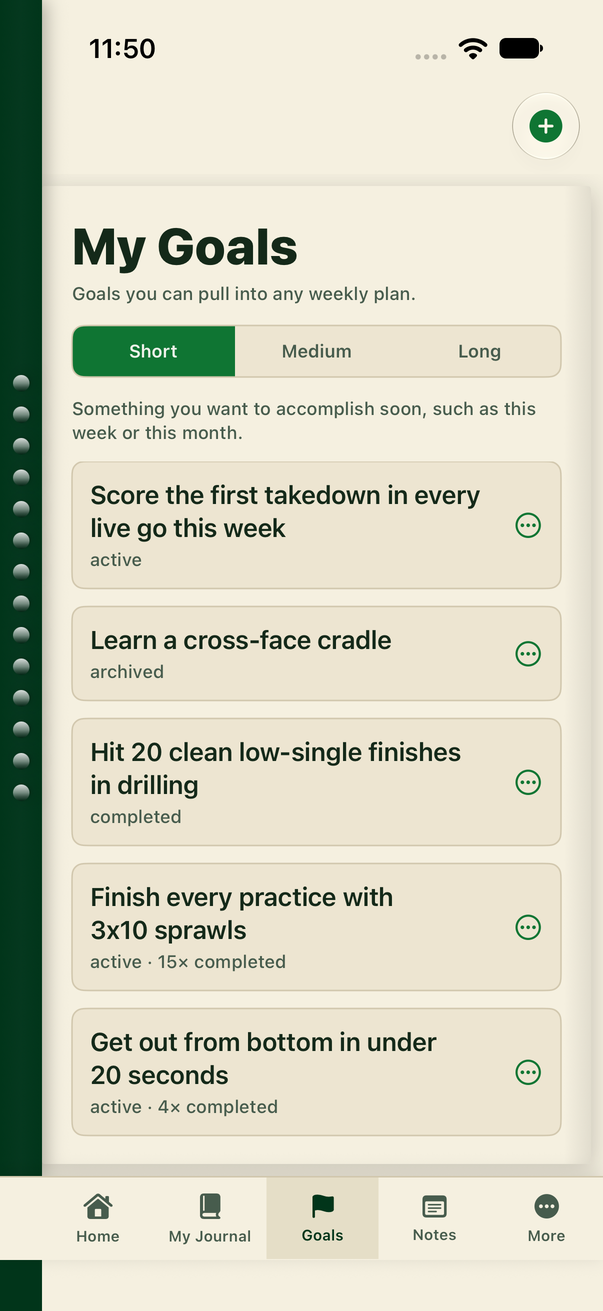
- Tap Goals to open My Goals: "Goals you can pull into any weekly plan."
- Tap Short, Medium, or Long to see goals for each time frame.
- Each goal shows whether it's active, paused, completed, or archived.
- Tap ⋯ on a goal to mark it completed, pause it, or archive it.
- To add a goal, tap the + button at the top. Enter a Title, pick Short-term, Medium-term, or Long-term, and tap Save.
Your weekly plans are under My Journal, in THIS WEEK'S PLAN.
Share your journal with your coach, or keep it private
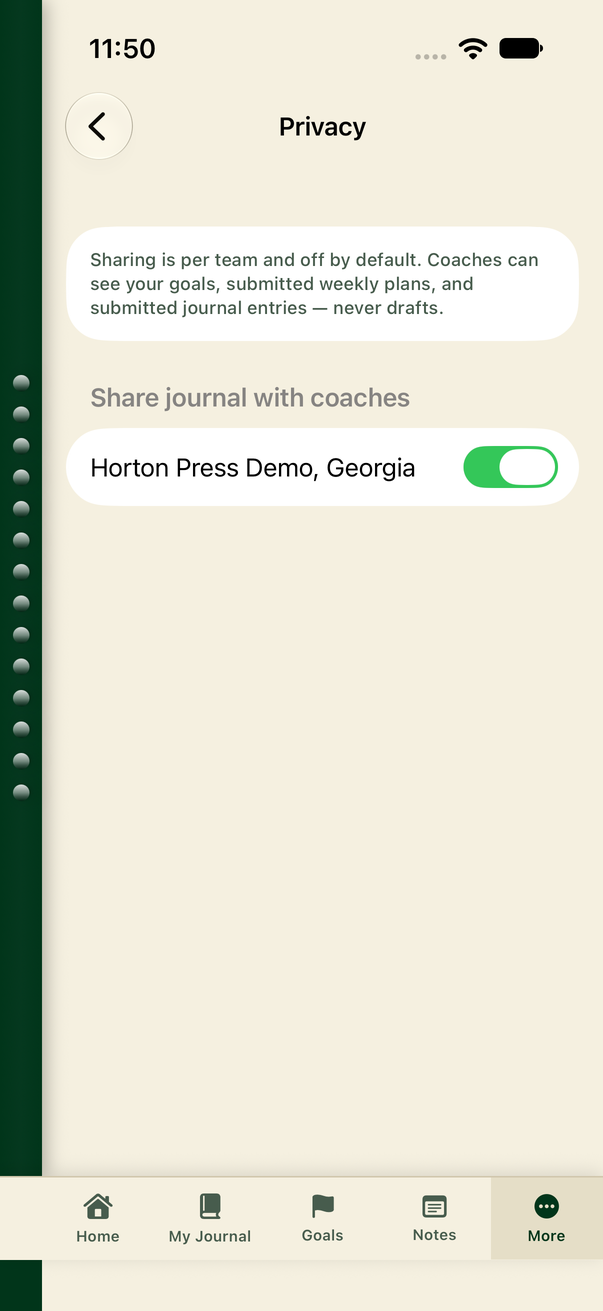
- Tap More, then Privacy.
- Under Share journal with coaches, find your team's name.
- Turn the switch on to share your journal with that team's coaches. Turn it off to keep it private.
The switch only shows up once your team membership is active. Until then, the app says "Join an active team to share your journal with its coaches." Sharing is set for each team and is off until you turn it on. When it's on, coaches can see your goals, submitted weekly plans, and submitted journal entries, but never your drafts.
When it's off, your coach can still see whether you journaled, such as your streak and how often you write. They can't open your journal or read what you wrote.
Join a team
- Tap More, then Teams.
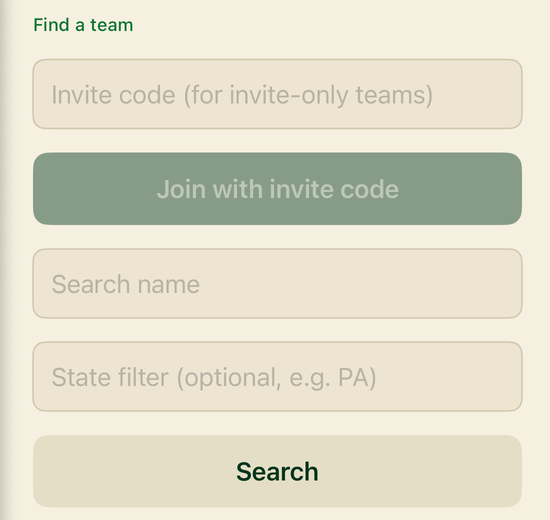
- Under Find a team, do one of these:
- With an invite code from your coach: type it in Invite code (for invite-only teams) and tap Join with invite code.
- Without a code: type your team's name in Search name. You can also add your state in State filter (optional, e.g. PA). Tap Search, then tap Join next to your team. This only works if your team lets anyone join. If it says invite only, ask your coach for the code. Some teams need your coach to approve you first.
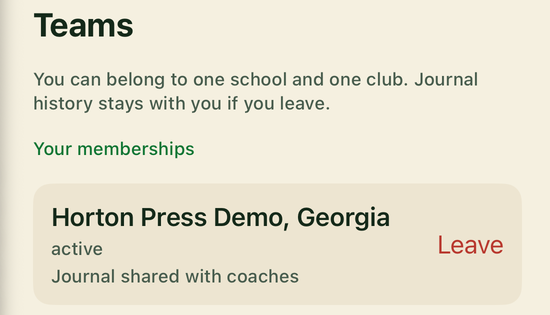
Your team then shows under Your memberships, with its status (for example active) and whether your journal is shared (Journal shared with coaches) or private (Journal private from coaches). You can belong to one school team and one club team.
Coach feedback
Coaches can leave comments and tags on your entries, but those aren't shown in the app yet.