
Team Planner
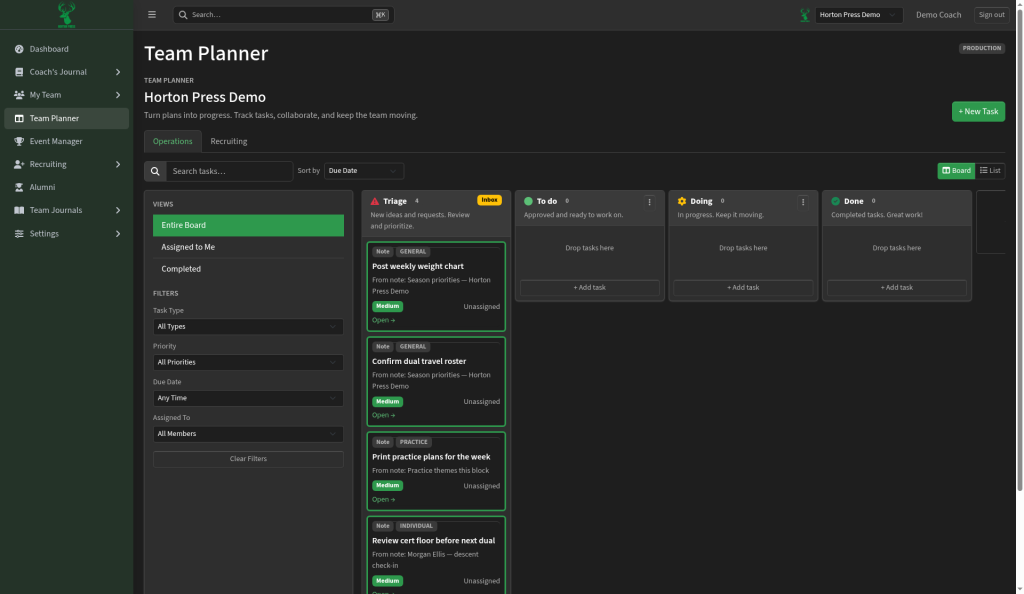
Team Planner turns plans into progress. Use boards to track tasks, assign owners, and keep the staff moving.
How to open it
In the side menu, select Team Planner.
Boards
Two main tabs:
- Operations — day-to-day team tasks (travel roster, practice printouts, weight charts, and similar)
- Recruiting — recruiting follow-ups on their own board
Columns (left to right)
- Triage (new items waiting to be sorted — like an inbox) — review and prioritize
- To do — approved and ready to work on
- Doing — in progress
- Done — finished
Drag cards across columns as work moves, or use + Add task at the bottom of a column.
Views and filters
On the left of the board:
- Entire Board, Assigned to Me, or Completed
- Filters for task type, priority, due date, and who is assigned
Switch between Board and List at the top of the columns if you prefer a list layout.
Create a task
Select + New Task, fill in the title and details, then save. Tasks that come from Team Notes often keep a link back to the original note so context stays attached.