
Check-in
Check-in is how you record who showed up and, when you need it, what they weighed. You can tie a check-in to a calendar event or record a simple time stamp.
How to open it
In the side menu, open My Team, then select Check-in.
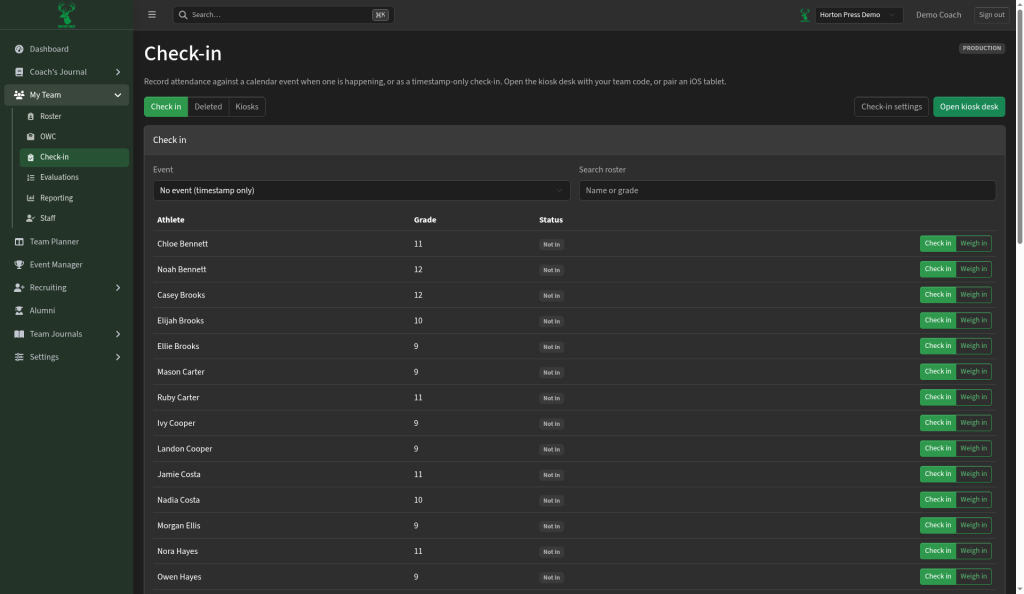
Tabs
- Check in — today’s attendance and weigh-in actions
- Deleted — check-ins that were removed
- Kiosks — manage kiosk devices and codes
Take attendance
- Pick an Event from the dropdown, or choose No event if you just want to record the time (no calendar event).
- Search the roster by name or grade if the list is long.
- Select Check in next to each athlete who is present.
- Select Weigh in when you also need a weight.
Status shows who is still Not in so you can finish the list quickly.
Kiosk desk
Select Open kiosk desk to run check-in on a shared screen with your team code. You can also pair an iPad. Manage paired devices under the Kiosks tab.
Settings
Check-in settings controls how check-in behaves for your team (defaults, kiosk options, and related preferences). Open it from the button near the top of the page.